Getting Started
This page is the whole integration: install, configure, load, show, style, observe, and clean up. The API Reference has the exhaustive detail on every type mentioned here.
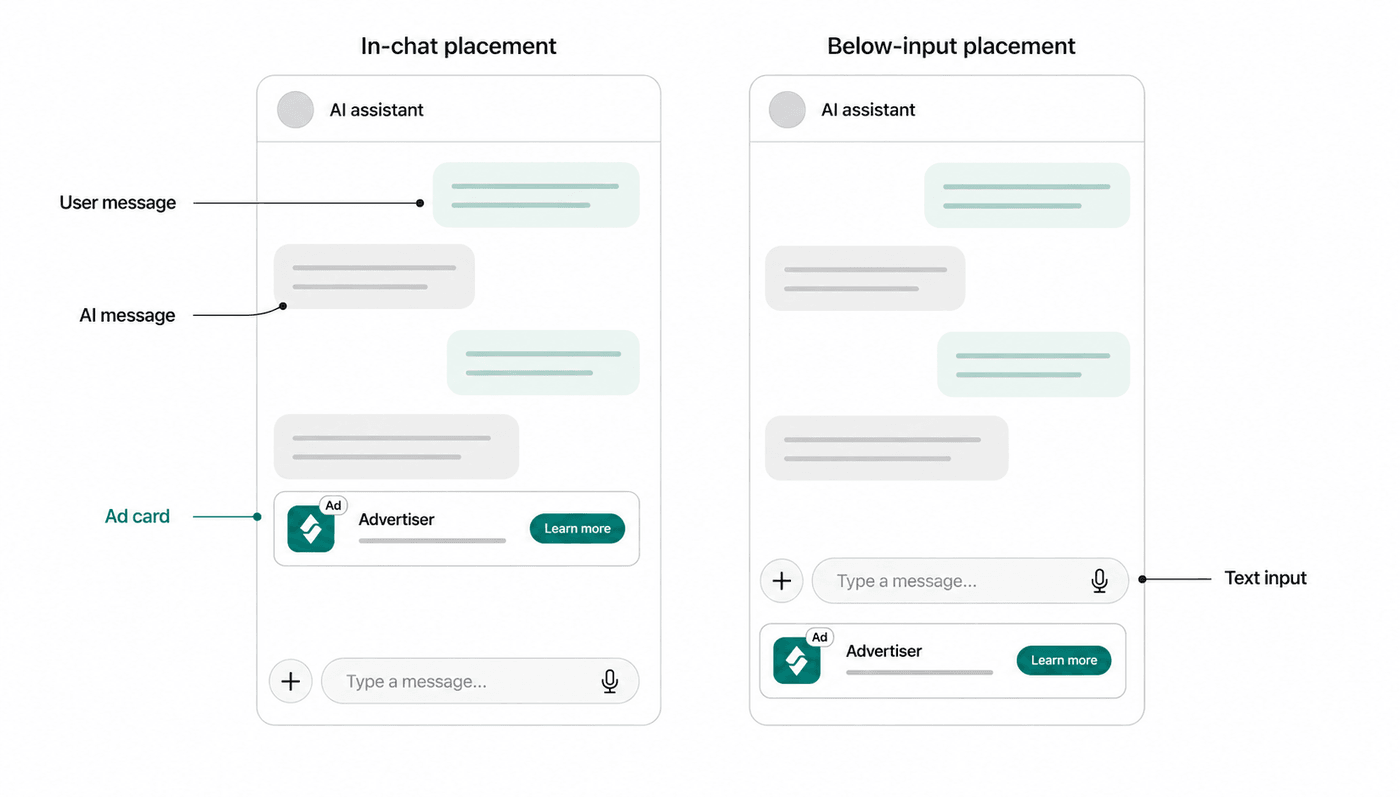
The SDK renders two placements: a card inline in the chat list (Show it) and a banner strip above the keyboard (Keyboard banner).
Installation
Section titled “Installation”Add the SDK to your project via Swift Package Manager. In Xcode: File → Add Package Dependencies and enter:
https://github.com/growlads/elo-ios-sdkAfter Xcode resolves the package, make sure the EloAds library product is added to the same app target that will import EloAds. Adding the repository alone does not make the module visible to your target.
Or add it directly to your Package.swift:
dependencies: [ .package(url: "https://github.com/growlads/elo-ios-sdk", exact: "0.7.0"),],targets: [ .target( name: "MyApp", dependencies: [ .product(name: "EloAds", package: "elo-ios-sdk"), ], ),]Requires iOS 16.0+, Swift 5.9+, and Xcode 15+.
Configure
Section titled “Configure”Call this once, early in your app lifecycle:
import SwiftUIimport EloAds
@mainstruct MyApp: App {    init() {        Elo.configure(            publisherId: "YOUR_PUBLISHER_ID",            adUnitId: "YOUR_AD_UNIT_ID",        )    }
    var body: some Scene {        WindowGroup { ContentView() }    }}
Good to know at this point:
- Passive geo sharing is on by default. If your app already holds a location permission, the SDK attaches a coarse, rounded location to ad requests. It never prompts for the permission itself. Opt out with
shareGeoLocation: falsehere orElo.setShareGeoLocation(false)at runtime — see Privacy & Consent. - Child-directed apps must set the
coppa/tfuaflags onEloConfiguration— see Privacy & Consent. - COPPA/TFUA and log level go through the full form
Elo.configure(with:)instead — seeEloConfiguration.
Load an ad
Section titled “Load an ad”Pass the recent chat history to get a contextual ad. loadAd is async, safe to call from any task, and returns an AdResult:
let messages = [    ChatMessage(role: .user, content: "Best laptops for coding?"),    ChatMessage(role: .assistant, content: "I'd recommend the MacBook Pro M4..."),]
let result = await Elo.loadAd(messages: messages)- Human-to-human chats use the same two roles: map the device owner to
.userand the other participant to.assistant— see MessageRole. - Long conversations: send a
.summarymessage followed by the most recent user/assistant exchange instead of the full history — either shape works. - Message ids and times: pass the
idandcreatedAtyour app keeps for each turn, the same values on every request, so Elo knows when each turn happened and can match the turn to a Search API call that sends the same id. A.summarymessage carries the id and time of the turn it summarizes. See ChatMessage. - Your own message type can conform to
MessageRepresentableinstead of mapping by hand. - Extra targeting: pass
contextObjects:(screen/page metadata) when the surrounding UI carries useful signal. - Preloading: if a slot is about to become visible, warm the cache with fire-and-forget
Elo.preloadAd(messages: messages, maxHeight: maxHeight); a subsequentloadAdwith identical inputs may return immediately. The cache key is the messages, the context objects,maxHeightandmaxWidth, and the consent snapshot, so pass the same slot size to the preload and to the load that uses it.
Show it
Section titled “Show it”EloAdView renders the ad and handles render, impression, and click tracking automatically (impressions fire after ≥50% visibility for 1 continuous second, with the app frontmost and nothing drawn over the ad). Pass the AdResult and the view collapses to nothing on no-fill or error:
EloAdView(result: result)In a chat list, keep the ad view inline with the messages and re-fetch after each assistant turn:
struct ChatView: View {    @State private var messages: [ChatMessage] = []    @State private var adResult: AdResult?
    var body: some View {        ScrollView {            LazyVStack(spacing: 12) {                ForEach(messages.indices, id: \.self) { index in                    MessageBubble(message: messages[index])                }
                EloAdView(result: adResult)                    .padding(.horizontal)            }        }        .task(id: messages.count) {            guard messages.last?.role == .assistant else { return }            adResult = await Elo.loadAd(messages: messages)        }    }}
Elo picks the ad’s format from the space you have. Without maxHeight, as above, an ad between messages is a card. Pass maxHeight: to Elo.loadAd or a request-owning EloAdView for a smaller slot; see Ad Formats.
Keyboard banner
Section titled “Keyboard banner”One modifier at the screen level pins a banner strip above the keyboard — no keyboard tracking or layout code:
ChatScreen() .eloKeyboardBannerAd(messages: messages)The slot requests the strip’s height, renders a strip on fill, and collapses on no-fill or error. When the keyboard is hidden it rests at the bottom safe area. Changing messages reloads the slot; use the optional onResult: closure to observe outcomes. While the request is in flight it shows a strip-shaped skeleton at the slot’s own size, so the composer above keeps its place when an ad arrives; pass showLoadingPlaceholder: false to keep the keyboard edge clear until an ad fills.
Two caveats:
- The modifier rides SwiftUI’s keyboard safe area. If the view it’s applied to (or an ancestor) uses
.ignoresSafeArea(.keyboard), the keyboard will cover the banner. Apply it outside anysafeAreaInset(edge: .bottom)your composer uses. - Keep your composer’s hit area from extending into the gap above the strip — ad networks (AdMob included) treat placements that invite accidental clicks next to text inputs as policy violations.
.eloKeyboardBannerAd is SwiftUI-only. UIKit apps host a request-owning EloAdView with a maxHeight of the strip’s height in a UIHostingController pinned to view.keyboardLayoutGuide.topAnchor.
Styling
Section titled “Styling”By default the ad view adapts to the system color scheme. Override any subset with eloAdStyle — on one view or a whole subtree:
ChatListView() .eloAdStyle(.init(borderColor: .gray, borderWidth: 1, cornerRadius: 16))Beyond colors, the style sets the typeface, forces light or dark colors on the ad alone, and can drop the ad’s own surface so it sits inside your chat row:
ChatListView() .eloAdStyle(.init( callToActionBackground: .yellow, // the button label turns black to stay readable font: .custom("Inter"), colorScheme: .dark, chrome: .bare ))fontdraws the headline, description, button label, and disclosure badge in your typeface (.system(design: .rounded)or.custom("YourFont")). The SDK keeps its own sizes and weights, so the ad stays the height its slot asked for.colorSchemeforces.lightor.darkcolors on the ad only, for a chat screen that doesn’t follow the device setting.chrome: .bareremoves the background, border, and rounded corners. The card also drops its inner padding, except 4 points at the top and trailing edge for the disclosure badge. The strip keeps its padding, because the padding holds its tap inset.- Set only
callToActionBackgroundand the button label turns black or white, whichever contrasts more with your color.
Localize the disclosure badge per view. A string literal converts to an EloAdDisclosure implicitly; a String variable, including anything from NSLocalizedString, needs the explicit wrap:
EloAdView(    result: adResult,    sponsoredLabel: "Werbung",)
EloAdView(    result: adResult,    sponsoredLabel: EloAdDisclosure(NSLocalizedString("ad.sponsored", comment: "")),)
EloAdDisclosure also carries the badge’s font, color, and an accessibilityIdentifier for UI tests.
All style properties are listed under EloAdStyle.
Lifecycle callbacks
Section titled “Lifecycle callbacks”Register a delegate to observe load, fail, impression, and click events. The SDK holds it weakly (retain it yourself) and calls back on the main actor; all methods have default no-op implementations:
@MainActorfinal class AdObserver: EloAdDelegate {    func eloAdDidLoad(_ ad: EloAd) { /* analytics */ }    func eloAdDidFailToLoad(error: EloError) { /* logging */ }    func eloAdDidTrackImpression(_ ad: EloAd) { /* analytics */ }    func eloAdDidReceiveClick(_ ad: EloAd) { /* analytics */ }}
let observer = AdObserver()Elo.setDelegate(observer)
Your own in-app browser
Section titled “Your own in-app browser”By default a tap on an ad opens its click URL in the system browser. To use your own in-app browser, such as an SFSafariViewController, open the URL from your delegate’s eloAdOpenClickURL(_:url:) and return true, and report when the browser opens and closes. The SDK sends how long the user stayed on the advertiser’s page.
func eloAdOpenClickURL(_ ad: EloAd, url: URL) -> Bool { Elo.trackBrowserOpened(ad) browser.open(url) { Elo.trackBrowserClosed(ad) } return true}Return false to let the SDK open the URL in the system browser. In an app, an openURL action you set around EloAdView does not change where ads open; in an app extension, which has no UIApplication, the SDK opens ads through that action. Do not open the URL from eloAdDidReceiveClick: the SDK opens it too, so the ad would open twice.
The time counts any time the app spent in the background while the browser was open. A second open before the close, and a close without an open, are ignored.
Falling back to another network
Section titled “Falling back to another network”Elo is a single demand source. If you also run another ad network, keep the fallback in your own code: request Elo first, render the ad on .loaded, and hand the same slot to your other network on .noFill or .error. Both non-loaded cases mean Elo has nothing to show for this request, so treat them the same way.
switch await Elo.loadAd(messages: messages) {case .loaded(let ad, _): slot = .elo(ad) // e.g. EloAdView(ad: ad)case .noFill, .error: slot = .otherNetwork // your other network fills the same slot}In a chat UI you can request twice for one slot: once when the user’s message arrives, and again with the assistant’s answer appended if the first request did not fill. The second request carries more context, so it can fill where the first did not.
var result = await Elo.loadAd(messages: messages) // ends with the user's messageif case .loaded = result {} else { result = await Elo.loadAd(messages: messages + [answer])}AdResult.loaded also carries eCpm, the price the Elo server quoted for the fill. When your other network quotes a price at load time, request both and render the higher one, calling EloAd.releaseResources() on the Elo ad you discard. Only call it when you’ve decided not to render the ad; ads passed to EloAdView are cleaned up by the SDK automatically. See Other Ad Networks for the comparison patterns.
Pause and clean up
Section titled “Pause and clean up”Elo.disable()pauses ad requests without tearing down the SDK (e.g. while a paid user is signed in) —loadAdreturns.noFill(.sessionDisabled)untilElo.enable().Elo.shutdown()cancels in-flight requests and releases resources; after it,loadAdreturns.noFill(.notConfigured)until you configure again.
Next steps
Section titled “Next steps”- Example app — a runnable chat app demonstrating chat-list ads, the keyboard banner, styling, and the diagnostics screen
- Other Ad Networks — run Elo alongside another network with a fallback in your own code
- API Reference — complete reference for all public types
- Release Notes — what changed per version, with upgrade callouts
- Privacy & Consent — CMP setup, COPPA/TFUA, geo sharing, and your App Store disclosures
- app-ads.txt — declare Elo as an authorized seller of your inventory