Getting Started
This page is the whole integration: install, configure, load, show, style, observe, and clean up. The API Reference has the exhaustive detail on every type mentioned here.
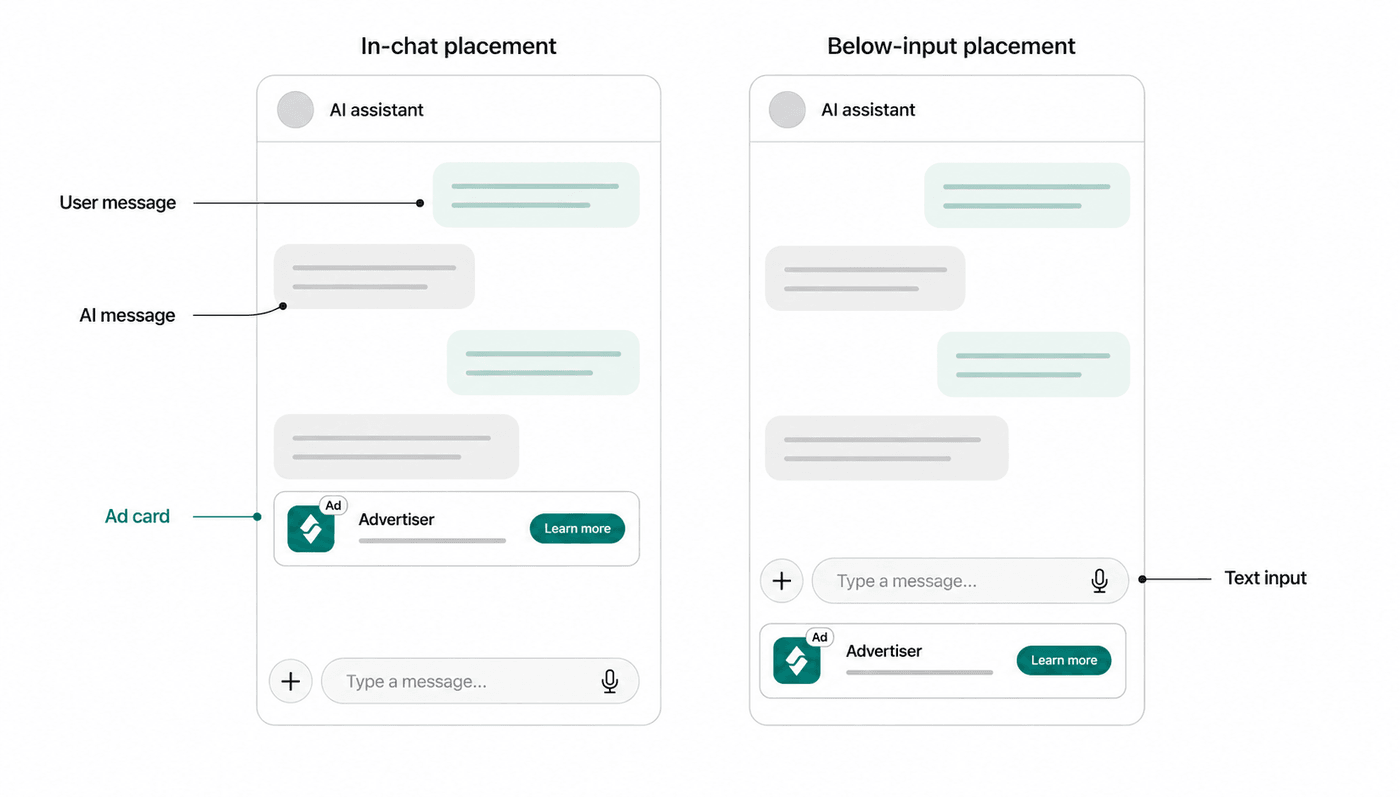
The SDK renders two placements: a card inline in the chat list (Show it) and a banner strip above the keyboard (Keyboard banner).
Installation
Section titled “Installation”The SDK is available on Maven Central. Add it to your app’s build.gradle.kts:
dependencies { implementation("ad.elo:elo-ads-android:0.6.2")}Requires Android API 26+, Kotlin 2.0+, JVM target 11, and Compose BOM 2024.10.01+. The SDK ships Jetpack Compose ad views; XML-only apps host them inside a ComposeView — see Hosting from RecyclerView and XML.
Most public SDK types live in the root ad.elo.androidsdk package; Compose views live under ad.elo.androidsdk.ui:
import ad.elo.androidsdk.AdResultimport ad.elo.androidsdk.ChatMessageimport ad.elo.androidsdk.Eloimport ad.elo.androidsdk.EloErrorimport ad.elo.androidsdk.EloAdListenerimport ad.elo.androidsdk.MessageRoleimport ad.elo.androidsdk.ui.EloAdViewimport ad.elo.androidsdk.ui.EloKeyboardBannerAdConfigure
Section titled “Configure”Call this once, early in your app lifecycle (typically Application.onCreate()):
Elo.configure( context = this, publisherId = "YOUR_PUBLISHER_ID", adUnitId = "YOUR_AD_UNIT_ID",)Good to know at this point:
- Passive geo sharing is on by default. If your app already holds a location permission, the SDK attaches a coarse, rounded location to ad requests. It never prompts for the permission itself. Opt out with
shareGeoLocation = falsehere orElo.setShareGeoLocation(false)at runtime — see Privacy & Consent. - Child-directed apps must set the
coppa/tfuaflags — see Privacy & Consent. - COPPA/TFUA and log level go through the
Elo.configure(context, EloConfiguration(...))overload — seeEloConfiguration.
Load an ad
Section titled “Load an ad”Pass the recent chat history to get a contextual ad. loadAd is a suspend function — call it from a coroutine — and returns an AdResult:
val messages = listOf(    ChatMessage(MessageRole.USER, "Best laptops for coding?"),    ChatMessage(MessageRole.ASSISTANT, "I'd recommend the MacBook Pro M4..."),)
lifecycleScope.launch { val result = Elo.loadAd(messages)}- Human-to-human chats use the same two roles: map the device owner to
USERand the other participant toASSISTANT— see MessageRole. - Long conversations: send a
MessageRole.SUMMARYmessage followed by the most recent user/assistant exchange instead of the full history — either shape works. - Message ids and times: pass the
idandcreatedAt(anInstant) your app keeps for each turn, the same values on every request, so Elo knows when each turn happened and can match the turn to a Search API call that sends the same id. ASUMMARYmessage carries the id and time of the turn it summarizes. See ChatMessage. - Extra targeting: pass
contextObjects(screen/page metadata) when the surrounding UI carries useful signal. - Preloading: if a slot is about to become visible, warm the cache with fire-and-forget
Elo.preloadAd(messages, maxHeight = maxHeight); a subsequentloadAdwith identical inputs may return immediately. The cache key is the messages, the context objects,maxHeightandmaxWidth, and the consent snapshot, so pass the same slot size to the preload and to the load that uses it.
Show it
Section titled “Show it”EloAdView renders the ad and handles render, impression, and click tracking automatically (impressions fire after ≥50% visibility for 1 continuous second, while the app is resumed and the host window is focused and visible). Pass the AdResult and the view collapses to nothing on no-fill or error:
EloAdView(result = result)For the common path, EloAdView can also own the request and loading state:
EloAdView(messages = messages)That overload shows the built-in EloAdLoadingView skeleton while the request is in flight, then renders the ad on fill or collapses on no-fill. Pass showLoadingPlaceholder = false when the layout should reserve no ad space during loading. It starts a new request whenever messages or contextObjects changes — in chat feeds, pass a stable snapshot for the ad slot; if the conversation is still streaming or you need one request per assistant turn, call Elo.loadAd(...) yourself and render the returned AdResult.
In a LazyColumn chat list, inject ads as list items alongside messages:
sealed class ChatItem {    abstract val id: String
    data class Message(        val role: MessageRole,        val content: String,        override val id: String = "msg-${UUID.randomUUID()}",    ) : ChatItem()
    data class Ad(val ad: EloAd) : ChatItem() {        override val id: String get() = "ad-${ad.id}"    }}
@Composablefun ChatList(items: List<ChatItem>) {    LazyColumn(verticalArrangement = Arrangement.spacedBy(12.dp)) {        items(items, key = { it.id }) { item ->            when (item) {                is ChatItem.Message -> MessageBubble(item)                is ChatItem.Ad      -> EloAdView(ad = item.ad)            }        }    }}
Because EloAdView lives inside LazyColumn, the viewability tracker only fires the impression once the ad scrolls into view. Keys must be unique per item: EloAd.id identifies one showing, and each message gets its own id when it is created, because two messages can share the same text. Insert ads after assistant responses:
suspend fun handleAssistantReply(reply: ChatMessage) {    items += ChatItem.Message(reply.role, reply.content)
    val history = items.filterIsInstance<ChatItem.Message>()        .map { ChatMessage(it.role, it.content) }
    val result = Elo.loadAd(history)    if (result is AdResult.Loaded) {        items += ChatItem.Ad(result.ad)    }}
Elo picks the ad’s format from the space you have. An ad between messages is a card. Pass maxHeight to a request-owning EloAdView for a smaller slot; see Ad Formats.
Keyboard banner
Section titled “Keyboard banner”One composable at the screen level pins a two-line banner strip above the software keyboard — no IME tracking or inset code:
Box(Modifier.fillMaxSize()) { ChatScreen() EloKeyboardBannerAd( messages = messages, modifier = Modifier.align(Alignment.BottomCenter), )}The slot requests the strip’s height, renders a strip on fill, and collapses on no-fill or error. When the keyboard is hidden it rests above the navigation bar. Changing messages reloads the slot; use the optional onResult callback to observe outcomes. While the request is in flight it shows a strip-shaped skeleton at the slot’s own size, so the composer above keeps its place when an ad arrives; pass showLoadingPlaceholder = false to keep the keyboard edge clear until an ad fills.
Three caveats:
- The banner rides Compose’s
WindowInsets.ime. Pinning above the keyboard requires an edge-to-edge window (enableEdgeToEdge()) withandroid:windowSoftInputMode="adjustResize"; inadjustPanor non-edge-to-edge windows it degrades to resting at the window bottom. - Place it where no ancestor has already consumed the IME insets (e.g. outside a
Scaffoldcontent area that appliesimePadding()), or the strip will double-offset. - Keep your composer’s hit area from extending into the gap above the strip — ad networks (AdMob included) treat placements that invite accidental clicks next to text inputs as policy violations.
Hosting from RecyclerView and XML
Section titled “Hosting from RecyclerView and XML”If your list is a RecyclerView, host each Compose ad view inside a ComposeView per row:
class AdViewHolder(parent: ViewGroup) : RecyclerView.ViewHolder( ComposeView(parent.context).apply { layoutParams = ViewGroup.LayoutParams(MATCH_PARENT, WRAP_CONTENT) },) { fun bind(ad: EloAd) { (itemView as ComposeView).setContent { EloAdView(ad = ad) } }}For a fixed placement in an XML screen, drop a ComposeView and call into the SDK’s @Composable from setContent:
<androidx.compose.ui.platform.ComposeView android:id="@+id/adView" android:layout_width="match_parent" android:layout_height="wrap_content" />lifecycleScope.launch { val result = Elo.loadAd(messages) binding.adView.setContent { EloAdView(result = result) }}Styling
Section titled “Styling”By default, EloAdView inherits your Material 3 theme colors. Override any subset with EloAdStyle:
EloAdView( result = result, style = EloAdStyle( cardBackground = Color(0xFF1A1A2E), titleColor = Color.White, descriptionColor = Color.LightGray, borderColor = Color.Gray, borderWidth = 1.dp, cornerRadius = 16.dp, ),)Localize the disclosure badge per view by passing an EloAdDisclosure:
EloAdView( result = result, sponsoredLabel = EloAdDisclosure(stringResource(R.string.elo_sponsored)),)EloAdDisclosure also carries the badge’s fontSize, fontWeight, color, and a testTag for Compose UI tests.
The style also sets the typeface and can drop the ad’s own surface so it sits inside your chat row:
EloAdView( result = result, style = EloAdStyle( callToActionBackground = Color(0xFFFFEB3B), // the button label turns black to stay readable fontFamily = FontFamily(Font(R.font.inter)), chrome = EloAdChrome.Bare, ),)fontFamilydraws the headline, description, button label, and disclosure badge in your typeface. The SDK keeps its own sizes and weights, so the ad stays the height its slot asked for.chrome = EloAdChrome.Bareremoves the background, border, and rounded corners. The card also drops its inner padding, except 4dp at the top and end for the disclosure badge. The strip keeps its padding, because the padding holds its tap inset.- Set only
callToActionBackgroundand the button label turns black or white, whichever contrasts more with your color. - The ad’s default colors come from
MaterialTheme.colorScheme. To force light or dark colors on the ad alone, wrap it in your own theme:MaterialTheme(colorScheme = darkColorScheme()) { EloAdView(...) }.
All style properties are listed under EloAdStyle.
Lifecycle callbacks
Section titled “Lifecycle callbacks”Register an EloAdListener to observe load, fail, impression, and click events. The SDK holds it weakly (retain it yourself, e.g. as a ViewModel property); all methods have default no-op implementations:
class ChatViewModel : ViewModel() {    private val adListener = object : EloAdListener {        override fun onAdDidLoad(ad: EloAd) { /* analytics */ }        override fun onAdDidFail(error: EloError) { /* logging */ }        override fun onAdDidTrackImpression(ad: EloAd) { /* analytics */ }        override fun onAdDidReceiveClick(ad: EloAd) { /* analytics */ }    }
    fun startListening() {        Elo.setListener(adListener)    }}
For a first-run QA check, keep the ad visible for at least one continuous second after it is 50% on screen: onAdDidLoad confirms the request filled, onAdDidTrackImpression confirms the viewability path fired, and onAdDidReceiveClick confirms click tracking.
Your own in-app browser
Section titled “Your own in-app browser”If you open ad clicks in your own in-app browser, report when it opens and closes. The SDK sends how long the user stayed on the advertiser’s page.
override fun onAdDidReceiveClick(ad: EloAd) { Elo.trackBrowserOpened(ad) // Call when your browser closes. browser.onClose = { Elo.trackBrowserClosed(ad) }}The time counts any time the app spent in the background, or the device spent asleep, while the browser was open. A second open before the close, and a close without an open, are ignored.
Falling back to another network
Section titled “Falling back to another network”Elo is a single demand source. If you also run another ad network, keep the fallback in your own code: request Elo first, render the ad on Loaded, and hand the same slot to your other network on NoFill or Error. Both non-loaded cases mean Elo has nothing to show for this request, so treat them the same way.
LaunchedEffect(messages) { slot = when (val result = Elo.loadAd(messages)) { is AdResult.Loaded -> SlotState.Elo(result.ad) // e.g. EloAdView(ad = result.ad) is AdResult.NoFill, is AdResult.Error -> SlotState.OtherNetwork // your other network fills the same slot }}In a chat UI you can request twice for one slot: once when the user’s message arrives, and again with the assistant’s answer appended if the first request did not fill. The second request carries more context, so it can fill where the first did not.
var result = Elo.loadAd(messages) // ends with the user's messageif (result !is AdResult.Loaded) { result = Elo.loadAd(messages + answer)}AdResult.Loaded also carries eCpm, the price the Elo server quoted for the fill. When your other network quotes a price at load time, request both and render the higher one, calling EloAd.releaseResources() on the Elo ad you discard. Only call it when you’ve decided not to render the ad; ads passed to EloAdView are cleaned up by the SDK automatically. See Other Ad Networks for the comparison patterns.
Pause and clean up
Section titled “Pause and clean up”Elo.disable()pauses ad requests without tearing down the SDK (e.g. while a paid user is signed in) —loadAdreturnsAdResult.NoFill(NoFillReason.SessionDisabled)untilElo.enable().Elo.shutdown()cancels in-flight requests and closes the HTTP client; after it,loadAdreturnsAdResult.Erroruntil you callconfigure(...)again.
Next steps
Section titled “Next steps”- Other Ad Networks — run Elo alongside another network with a fallback in your own code
- API Reference — complete reference for all public types
- Release Notes — what changed per version, with upgrade callouts
- Privacy & Consent — CMP setup, COPPA/TFUA, geo sharing, and your Play Data safety disclosures
- app-ads.txt — declare Elo as an authorized seller of your inventory